Dashboard Assistant
The Dashboard Assistant is an AI helper available on every page of your project dashboard. It can check your project status, walk you through filling out your store listing, answer general questions, and quietly hand more complex requests over to our team.
What the Assistant Does
The assistant lives in the bottom-right corner of every dashboard page. You can ask about your project status, get help filling in your App Store and Play Store listing, ask general questions about how AppBuildChat works, or request changes to your app. If something is beyond what the assistant can answer on its own, it forwards the request to our team in the background. You do not need to do anything else.
Opening the Assistant
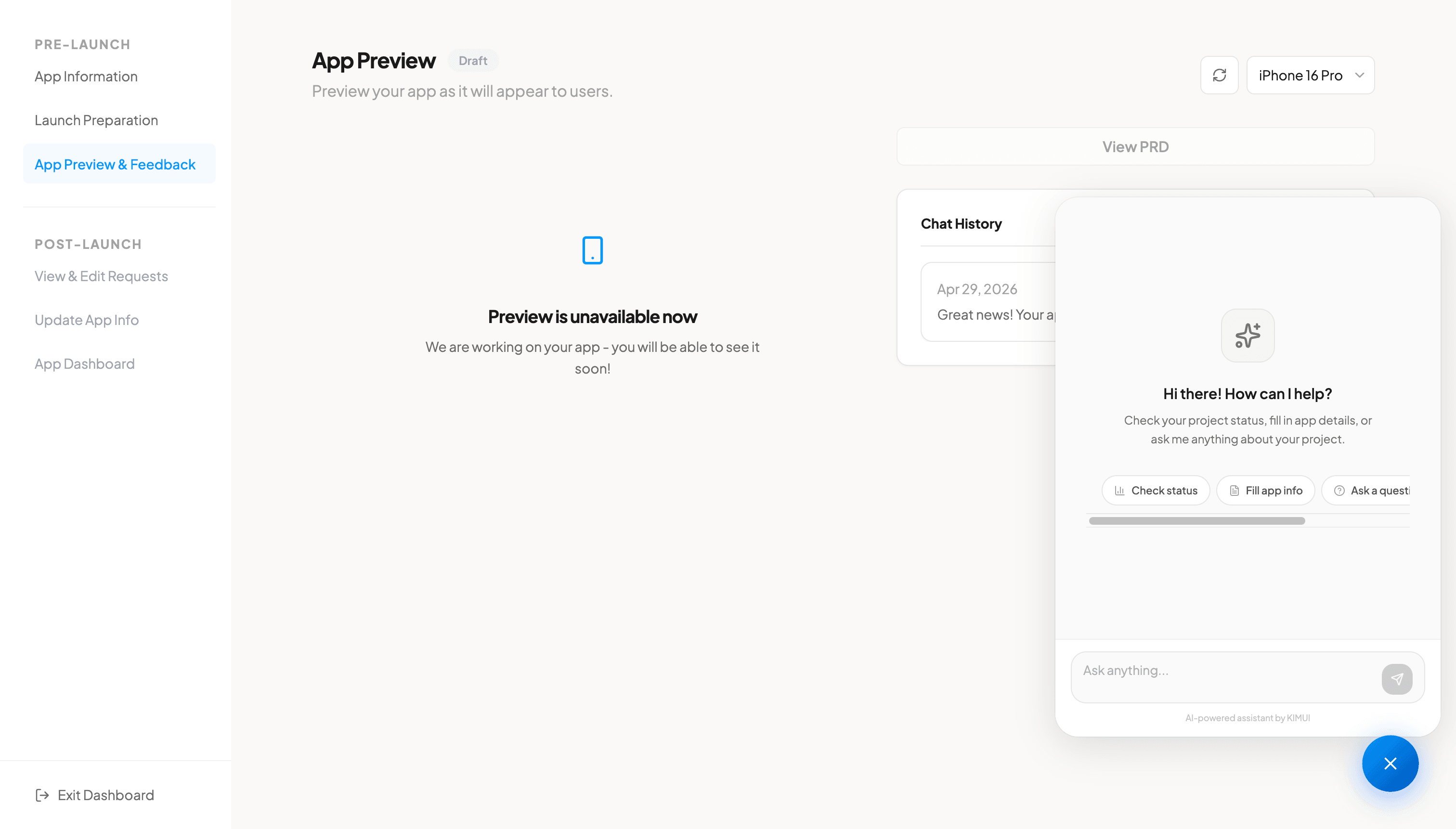
Look for the round Sparkles button at the bottom-right of your dashboard. Click it once and a chat panel slides open. On desktop, the panel docks to the corner. On mobile, it expands to fill the screen so you have more room to read and type.
Quick Actions
When you first open the assistant, you will see four quick action chips.
- Check status. Get an instant summary of where your project is in the build process.
- Fill app info. Start a guided walkthrough that helps you fill out every required App Store field.
- Ask a question. Ask anything about AppBuildChat, your plan, or how the dashboard works.
- Modify app. Submit a change request. The assistant will route it to the right place depending on your project status.
You can always ignore the chips and just type your question into the input field.
Guided Fill for App Information
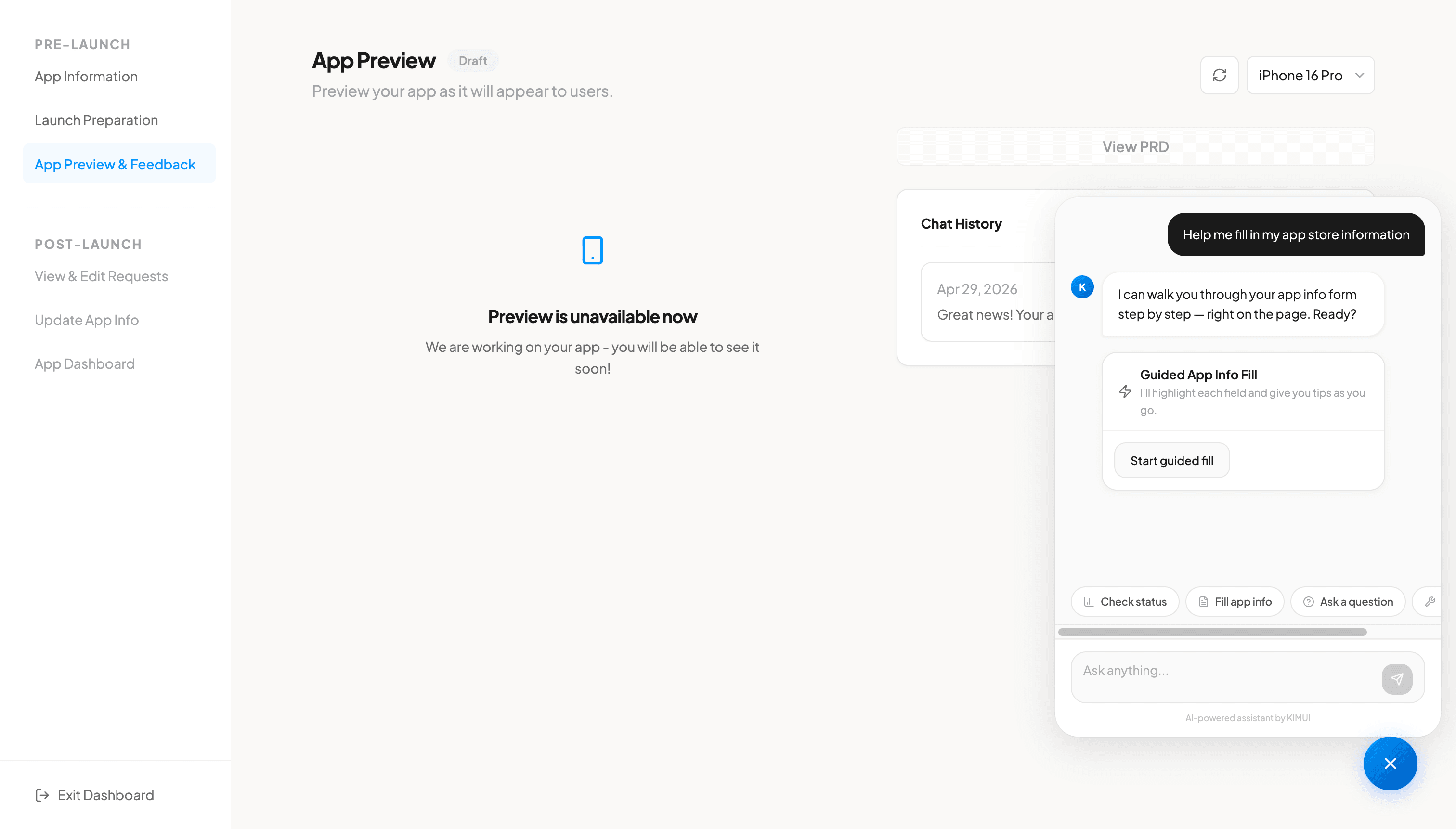
Selecting "Fill app info" starts a guided experience. The page dims, a spotlight highlights the current field, and a small helper bubble explains what to enter. You can move forward and backward through each field (name, subtitle, categories, description, promotional text, and keywords) at your own pace. If you get stuck on any field, open the chat alongside the spotlight and ask the assistant for examples or help writing copy.
When to Use Modify Chat Instead
Once your app reaches review or released status, the assistant will direct change requests to the dedicated Modify Chat. This is intentional. Post-launch modifications are reviewed by the team and use your monthly token balance, so they go through a slightly different flow than everyday questions. The assistant will guide you there automatically when needed.
FAQ
Is the assistant always available?
Yes. The assistant is available on every project dashboard page, 24/7. It is part of the dashboard layout, so you do not need to install or enable anything.
What happens if the assistant cannot answer my question?
If your question needs a human, the assistant quietly forwards it to our team in the background. You will get a reply through your usual support channel. There are no extra steps you need to take.
Can I use the assistant before my app is launched?
Yes. The assistant is most useful before launch. It can walk you through filling out your store listing, explain each field, and check your project status. It works the same way after launch as well.
Does using the assistant count as my monthly update?
No. Chatting with the assistant and using guided fill are always free. Your monthly update request is only used when you submit a modification that the team needs to apply to your app.