Dashboard Overview
The Dashboard is your central hub for managing your app after development begins. Here you can review your app, enter store listing details, request modifications, and prepare for launch.
How to Access the Dashboard
After logging in, click your profile button in the top-right corner and select "Go to My Project." You will be automatically redirected to your project's Dashboard. If you have no projects yet, you will be redirected to the builder to start a new one.
What the Dashboard Does
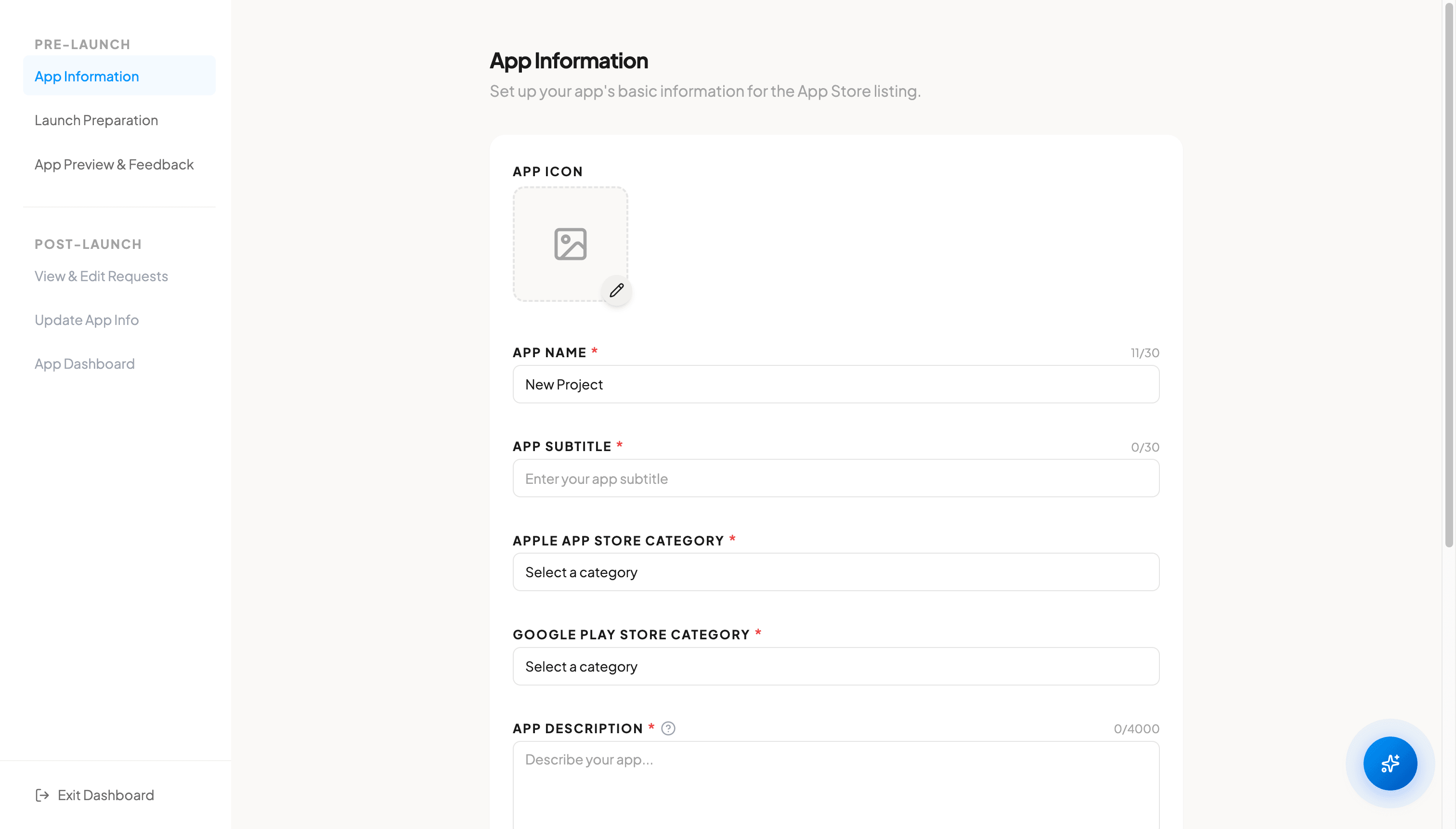
The Dashboard serves three main purposes. You review and preview your completed app, you enter the information required for App Store and Play Store submission, and you request changes or updates to your app through a modification chat. Everything you need to take your app from development to launch is accessible from the Dashboard.
The Three Tabs
The Dashboard is organized into three tabs, each handling a different part of the process.
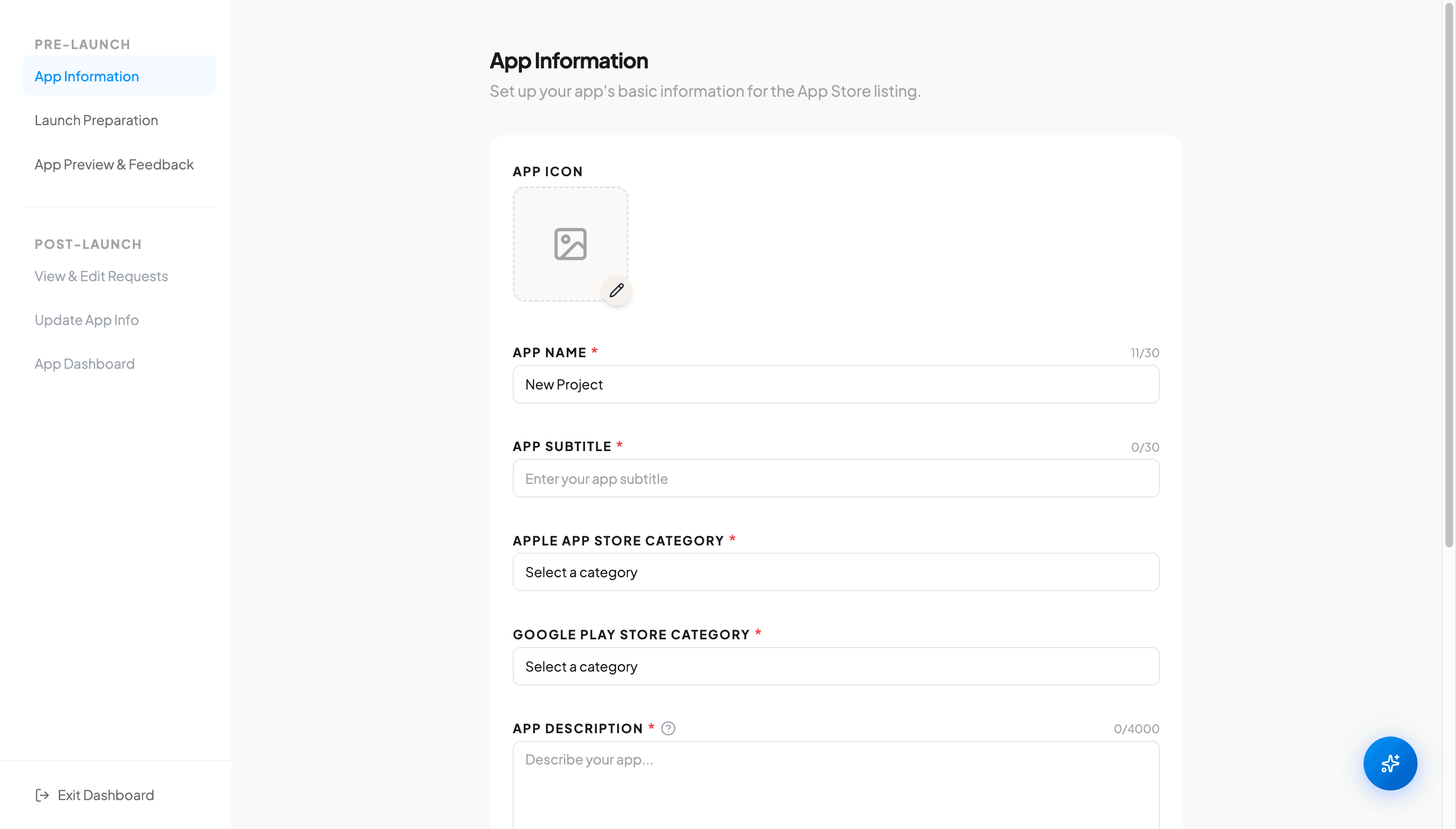
App Information. Enter your app's store listing details such as app name, description, icon, and categories. This information is required by the App Store and Play Store.
App Preview & Feedback. See how your completed app looks on different devices (iPhone and Android). You can also check your PRD and chat history here.
Launch Preparation. Enter the URLs, certificates, and account details needed to submit your app to the stores. A checklist tracks your progress.
Modifying Your App
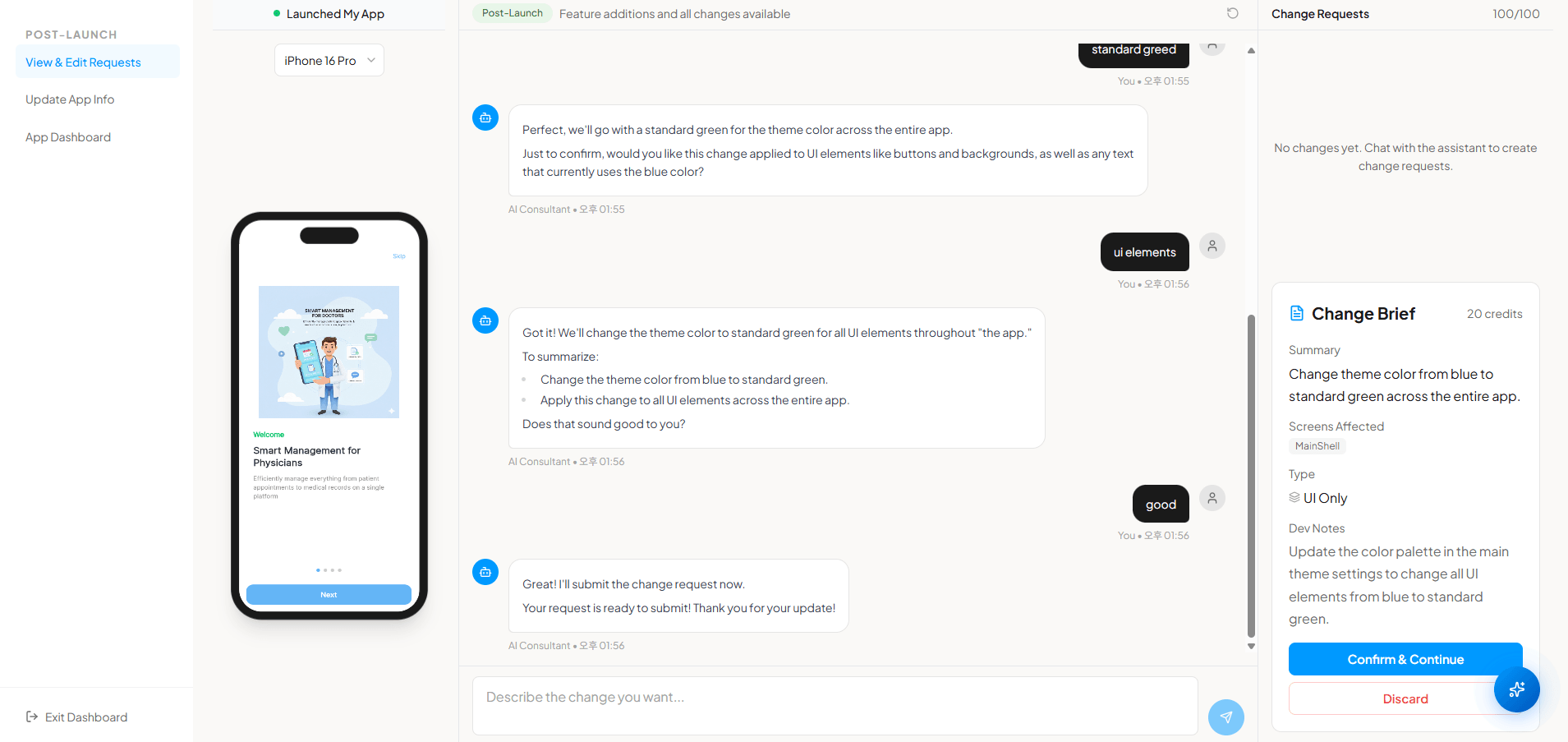
When your project reaches review or released status, a modification banner appears on the App Preview tab. Clicking this banner opens a split-screen modification chat where you can view your current app on the left and describe the changes you want on the right. There are two modes. Pre-launch mode is for UI fixes and bug fixes before release, and Post-launch mode is for feature additions and all types of changes after release. Once you submit a modification request, our team reviews it and applies the update within approximately one week. Modifications use your monthly token balance.
FAQ
How do I get to the Dashboard?
Log in to Appbuildchat, click your profile button in the top-right corner, and select "Go to My Project." You will be automatically taken to your project's Dashboard.
Do I need to complete the tabs in order?
No. You can switch between tabs freely. However, App Information and Launch Preparation must both be completed before your app can be submitted to the stores.